
The schedule widget link will reflect your drop-in packages as well as your bookable classes.
The drop-in member will chose a drop-in package by clicking on "book a class" > select a package > choose the amount of sessions they would like to purchase e.g. 5 > enter their details > accept your waiver, and submit their details
- if integrated with online payments they a payment window will open to enter their credit card details;
- if allowing cash payments, an unpaid invoice is automatically created and sent
and then book their sessions.
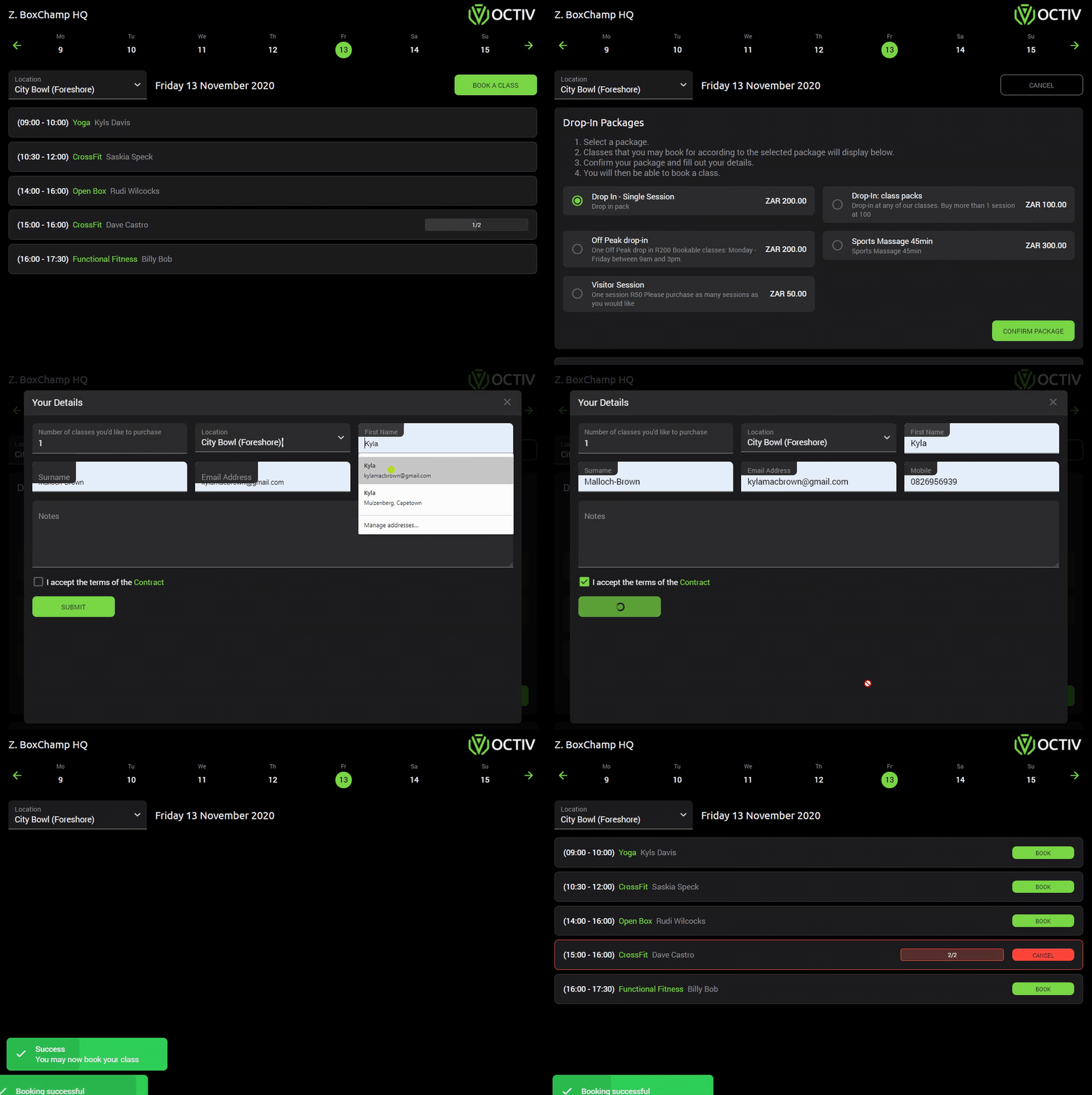
A confirmation email will be sent to the owner and drop-in member with a link to access the class schedule. Drop-in members can then use this link to manage their class bookings and cancellations.
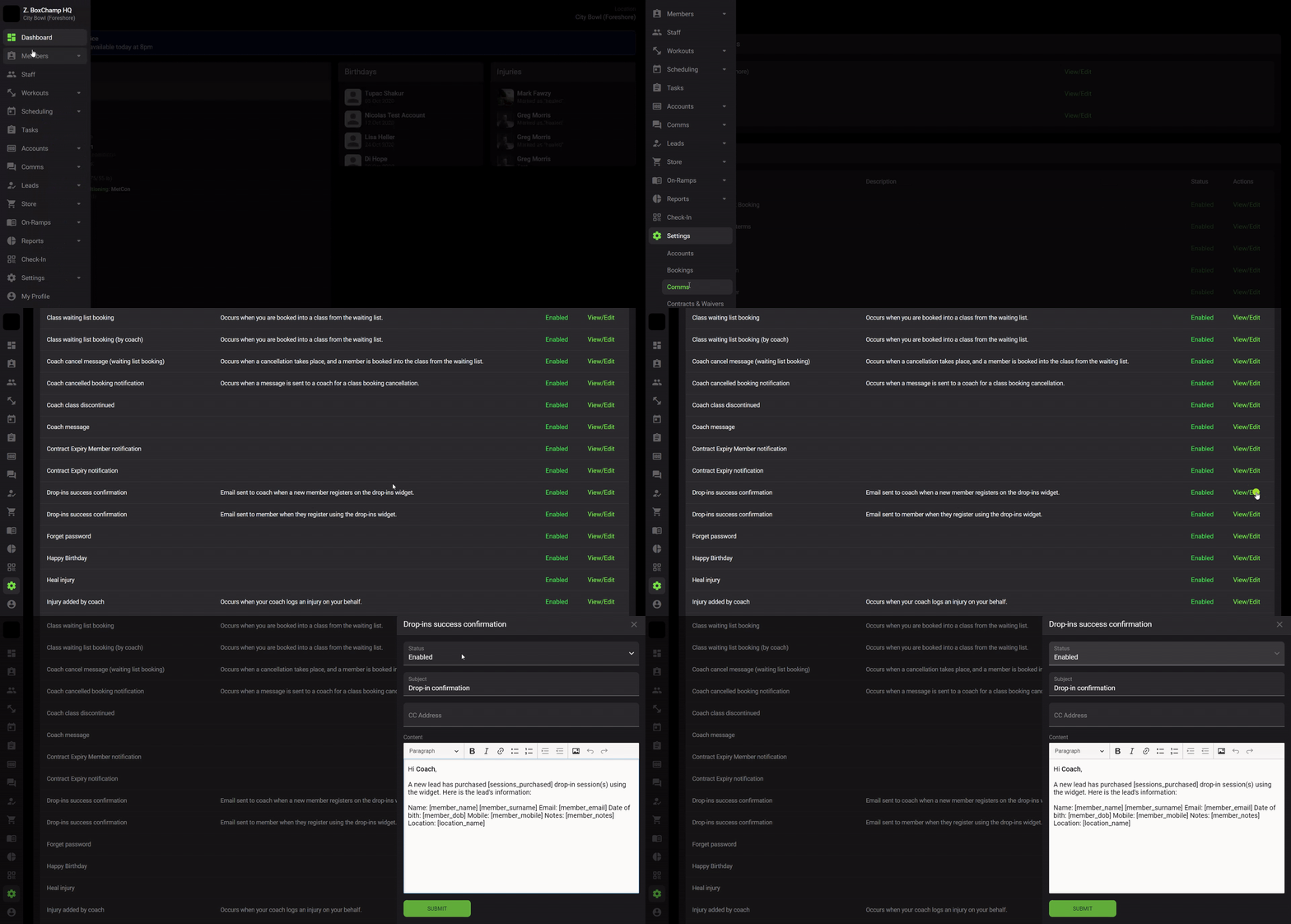
The notification can be found and customized under
Settings > Comms > Drop-ins success confirmation > Edit
Drop-in members can't sign up or be added to the waiting list, this is reserved for members only.
When editing the notification make sure not to delete the "placeholders" that have been put in place in order for the linked data to pull through .